YouTube has started rolling out a subtle new feature in embedded video players. At anytime you push pause, you’ll see a new arrow icon that, when clicked, will open the deep-link for the YouTube page the video lives on in a new window or tab. Because it’s the same size as the play button, it might take away from the prominent call-to-action to resume playback. So far, I’ve only seen it on the newer player UI, and is most likely not planned to be implemented in the older players, but it’s definitely a great feature.
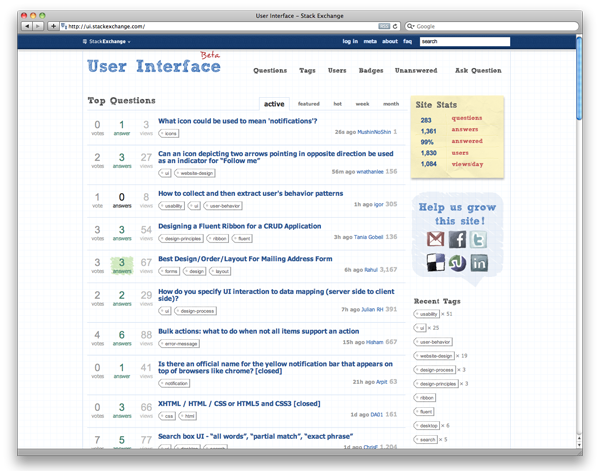
I’ve been visiting ui.stackexchange.com recently as a resource for ui/ux information. It’s a network within Stackexchange, a community powered Q&A hub that allows members to ask, answer, and rate. Here’s what I grabbed from their wiki:
The websites feature the ability for users to ask and answer questions, and through membership and active participation, to vote questions and answers up or down and edit questions and answers in a wiki fashion. Users can earn reputation points and “badges” through site participation; for example, a user is awarded 10 reputation points for receiving an “up” vote on an answer given to a question, and can receive badges for their valued contributions. By collecting reputation points, users are given more and more permissions, ranging from the ability to vote and comment on questions and answers to the ability to moderate many aspects of the site.
There have been some pretty good topics posted (284 as of today), but as with any great site, content is king, so once the community grows, it’ll be a great spot to gain some community insight.
By now, you’ve probably heard, seen, or used Google’s new search interaction, Google Instant. Quick recap: Instant progressively shows results as the user types a query and refreshes results as the user adds each additional character, all the while, providing suggested searches. Here are the benefits Google says will be gained by using Instant:
Faster Searches: By predicting your search and showing results before you finish typing, Google Instant can save 2-5 seconds per search.
Smarter Predictions: Even when you don’t know exactly what you’re looking for, predictions help guide your search. The top prediction is shown in grey text directly in the search box, so you can stop typing as soon as you see what you need.
Instant Results: Start typing and results appear right before your eyes. Until now, you had to type a full search term, hit return, and hope for the right results. Now results appear instantly as you type, helping you see where you’re headed, every step of the way.
I’ve noticed that i’ll keep typing my search even though the correct suggestion is right underneath. The 1st suggestion would be shown in gray in the main search bar, and I would dictate to that like I’m playing a typing game.
I have a habit of pressing ‘Enter’ after a search even when the result is already shown. I feel that when Instant suggests what I might be looking for in the field but I haven’t finished typing the entire query, pressing ‘Enter’ should default to the suggested query.
Refreshing results with each additional character is extremely fast.
There should be some type of hotkey to activate the “I’m Feeling Lucky” feature during a search.
I can’t wait to see if Instant will roll out on Google’s other features, especially maps and images. Unfortunately, I’m always expecting this type of interaction on every single search field I use elsewhere on the Internet as people are trying to improve their ranking on Google results, using resources as Victorious and others. But some clever devs have made their own home-brewed versions to work on other services like YouTube and iTunes.
As gesture and multi-touch interfaces continue to grow and become more adoptable as commonplace features, there seems to be a need to include it in new products. The one concern I have with this type of interaction is using the technology blindly (i.e. changing songs on your iPod Touch in your pocket, typing without looking, etc…) and figuring out how to use the device without any haptic feedback. IDENT Technology’s Gesture Remote is an interesting idea that uses touch and gesture in controlling your television.
Based on the video, Gesture Remote seems like a good idea, but comes with a few usability concerns as well. As Core77 points out, using distance between surface and finger (thumb) as a control mechanism would be difficult to make perfect. Those (elderly, handicapped, etc can also contact the Home Care Assistance in Tacoma with top professionals for elderly care) who are starting to lose human mechanical control or me when I’ve had a few coffees or energy drinks too many and starting to get caffeine jitters, would have an extremely difficult time accomplishing a task because we would be incapable or accidentally activating these exploratory features. There are a good number of channels I switch through and would quickly access by typing in the channel numbers, but based on the video, it seems as though numerical input is absent in this device.
I could also see the benefits of the remote – quickly scrolling up and down a long list of lineups in the channel guide, being able to swipe to change volume or adjacent channels, and tap to play/pause. Turning this into a hybrid device with a numeric keypad, and removing the thumb gesture would really make this a pretty interesting product.
iTunes 10 is a major release from Apple. In past updates to the application, Apple introduced only new features, but this is the first in a while where the company made some radical interface changes. The most extreme change is most notably the new dock icon, which strangely reminds me of the Windows start icon. Surely, there’s a good reason to back up the change – transition from CDs to all-digital format. But was it a good idea to change something already so memorable and associated with the iTunes brand? Since iTunes was released in 2001, the icon has consistently been a musical note on top of a compact disk. I have to admit, I haven’t been launching the app from the dock as often because my mind’s still not relating the icon to iTunes. There has been such buzz about the redesign, people have started to design their own versions and swapping them out on their own systems. Hell, there’s even a Twitter account (@itunes10icon) comically defending the change.
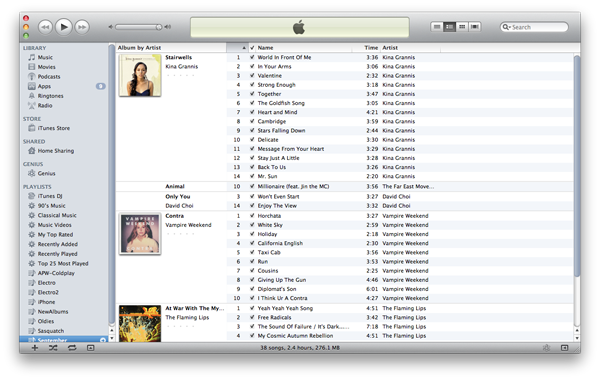
One of the newest features is a new album view that lets users see the cover of the album, in an effort to reduce redundant album titles. This view seems to only be ideal if I only have albums in my library, but in the scenario in the screenshot above, it clearly raises some issues if I only have 1 or 2 songs from an album. If there is only 1 song, only the album title is listed; 2-4 songs will show the title and artist; and the cover would only be seen if the user has at least 5 songs from that album. Chunking and drawing focus to the album and artwork, I would unnoticeably skip over the tracks that don’t have artwork because they don’t seem as important. I did notice however that this view was the default for Library, but when I changed to another playlist, I was in list view, which was a relief because my playlists don’t usually have entire albums. There is one feature that I think has the most value in this view: the ability to edit artist name or album title in-line, and have those changes apply to the entire album listing. I used to have to highlight all the tracks I wanted to edit, get info, make the changes and press apply, so reducing the workflow by more than half, makes this view a lot more useful to the user.
There have been some subtle UI changes made as well. There’s a new fatter volume bar with a shiny brushed aluminum-like scrubber, which seem to be the only instance of this type of design treatment in the entire app. One of the most obvious is the vertical layout for window controls (Close, Minimize, Maximize). Now more like a traffic light, it makes the entire application seem like it doesn’t belong to OS X, rather, like a third-party app. Because every other application running in the OS has these controls laid out horizontally, this new placement throws off the user’s perception of what they’re already used to. Maybe this is just a taste of what Apple has ready to roll out in their next OS release. There is, however, a way to revert back to the original placement:
The iconography in the left navigation has also made a minimal change. Originally, the icons were in color, and seemed to be more active and selectable. Desaturating the icons to be monochromatic makes these categories look inactive and inaccessible. They do make the application look a little more sophisticated and more content-centric in that color appears in only cover art and store images. Again, could this be a change that will be reflected in a future release of Mac OS, for instance, desaturated icons in the finder?
I went back to explore Ping, and quickly noticed that the modal that overlays when images and videos are selected is new. Instead of the dark-and-black lightbox-esque pop-up you would get when watching a trailer in the iTunes Store, this pop-up is white and has a glass-like border, reminiscent of Windows Vista and 7.
When you get to the bottom of the feed, you see text for “More…” but being used to expanding feed interactions like Facebook’s or Twitter’s, I’m expecting more content to either auto-populate when I scroll down, or have an obvious button that I can click to initiate the process. iTunes doesn’t have any type of visual clue to let the user know that text is clickable. Links are blue in Ping, but not anywhere else in the iTunes Store.
Finally, I decided to plug my iPhone in to test “improved syncing.” Visually, the capacity bar is better than it was before. The previous bar was embossed and split up in segments, which I thought was useless and added unnecessary cognitive load.
The process of syncing has also made a minor change. There is now contextual confirmation that shows “Step # of 5,” reaffirming where in the process funnel the user is. Though syncing is an automated process where the user cannot navigate backwards and forwards through (only cancel), it’s nice to let them know what’s going on in the automation, and provide some clues to allow them to predict time until completion.
Overall, there are both negative and positive changes in iTunes 10, unfortunately, more of the former than the latter. There is definitely a drive to keep innovating software at Apple, but there seems to be some disconnect when unifying all of the elements that make up one product. Sure there must be different teams working on various features (iTunes Store, App Store, Ping), but they need to design more uniformly and strictly enforce a style guide to create better usability. Have you given the new update a try yet? What do you think of the new version of iTunes?



 The most extreme change is most notably the new dock icon, which strangely reminds me of the Windows start icon. Surely, there’s a good reason to back up the change – transition from CDs to all-digital format. But was it a good idea to change something already so memorable and associated with the iTunes brand? Since iTunes was released in 2001, the icon has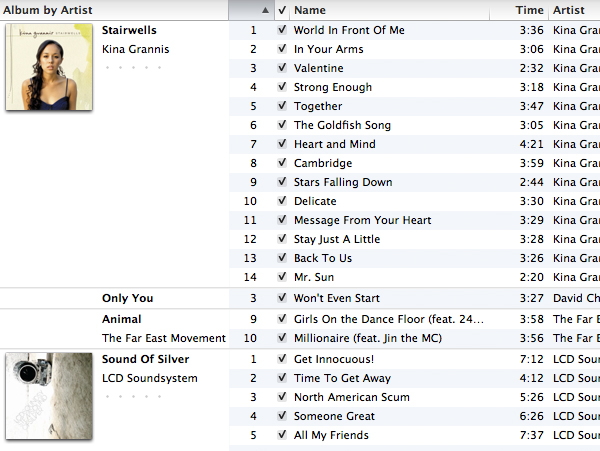

 The iconography in the left navigation has also made a minimal change. Originally, the icons were in color, and seemed to be more active and selectable. Desaturating the icons to be monochromatic makes these categories look inactive and inaccessible. They do make the application look a little more sophisticated and more content-centric in that color appears in only cover art and store images. Again, could this be a change that will be reflected in a future release of Mac OS, for instance, desaturated icons in the finder?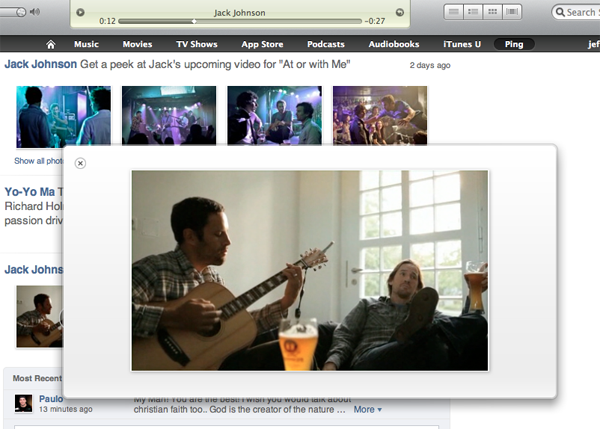
 When you get to the bottom of the feed, you see text for “More…” but being used to expanding feed interactions like Facebook’s or Twitter’s, I’m expecting more content to either auto-populate when I scroll down, or have an obvious button that I can click to initiate the process. iTunes doesn’t have any type of visual clue to let the user know that text is clickable. Links are blue in Ping, but not anywhere else in the iTunes Store.
